
Browse all guides
Adding your roster (CSV)
Import your team roster from a CSV so you can batch-create a video for every player.
The fastest way to get your whole team into SportStudio is a spreadsheet import. Once your roster lives in a collection, you can batch-create a video for every player.
Prepare your CSV
Build a spreadsheet with one row per player. Add a column for each detail you want, like first name, last name, number, position, class or year, and a headshot image URL. Save it as a CSV. Close column names are fine. SportStudio tries to match them for you.
Import it into a collection
- Open the Collections panel and choose or create your roster collection.
- Click Import CSV and pick your file. You can also use Import from URL to pull a roster from a web page.
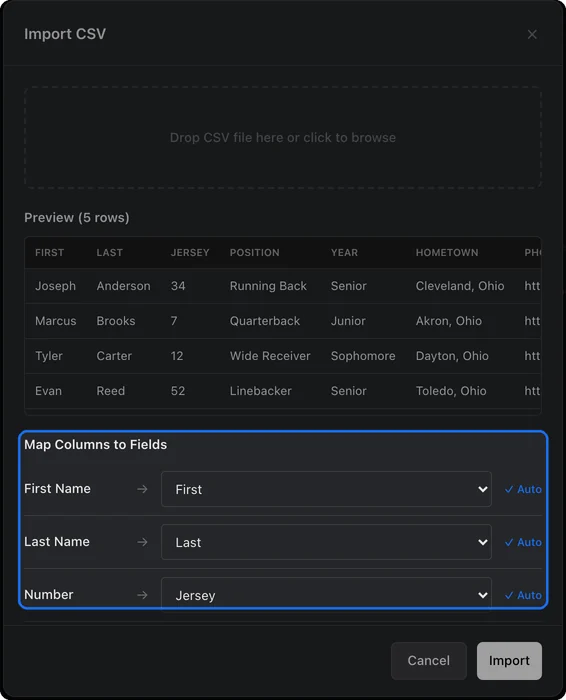
- SportStudio previews the first few rows so you can check it read the file right.
- Match each field to the right column. Common names map on their own, like "jersey" to Number or "photo" to Headshot. Fix any that don't line up.
- If the collection already has players in it, choose Overwrite existing items or Add as new rows. Then import.
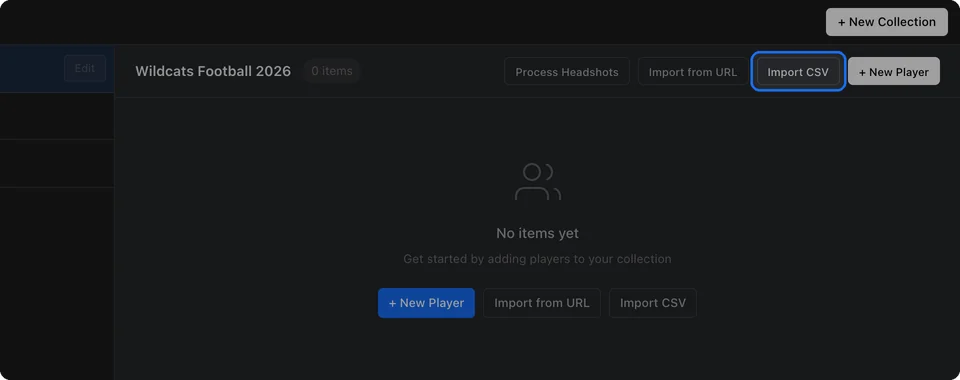
We clean up headshots for you
If your CSV includes headshot image URLs, SportStudio fetches each one and removes the background for you. Your players stay consistent, and you skip the manual cropping.
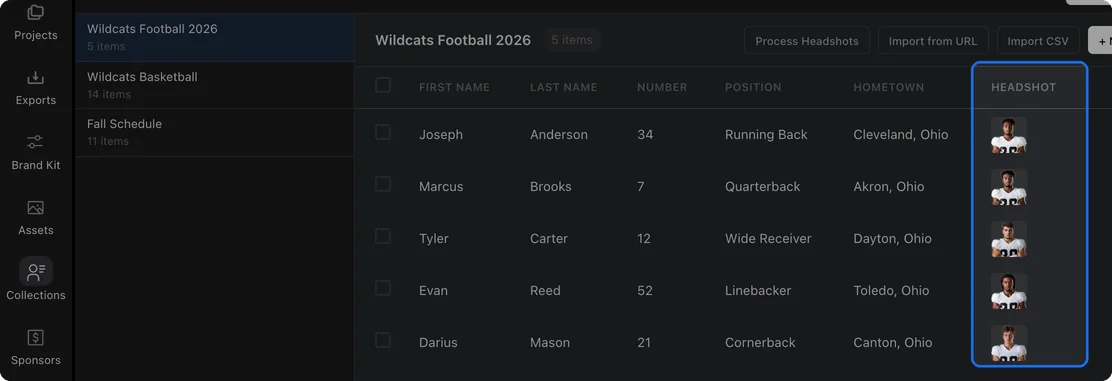
Added headshots later? Click Process Headshots on the collection. It removes the background from any headshot that isn't cut out yet.
Use your roster
With the roster in, link it to a template and render one video per player. On a one-player template, like a headshot, you can pick it right from the Player row at the top of the Editor panel. See Linking a collection for the next step.
A video walkthrough is on the way. If you get stuck before then, reach out and we're glad to help.