
Browse all guides
Setting up your ribbons
Save your LED ribbon sizes and breakpoints once, then pick a ribbon while you edit a ribbon template.
Ribbons work like boards. Save your ribbon sizes once, then pick one while you edit a ribbon template, instead of retyping dimensions for every video.
Your ribbons
Open Ribbons in the left menu to see every ribbon you've set up, and click + New Ribbon to add one. Ribbon boards are an add-on: if your package doesn't include them, + New Ribbon shows a lock. You can see your add-ons under your avatar menu, in Plan, and we're glad to add one.
Ribbon settings
- Name so you can recognize it later.
- Type: a ribbon, or a center-hung ribbon.
- Position and Level: where it sits in your venue, for the Arena.
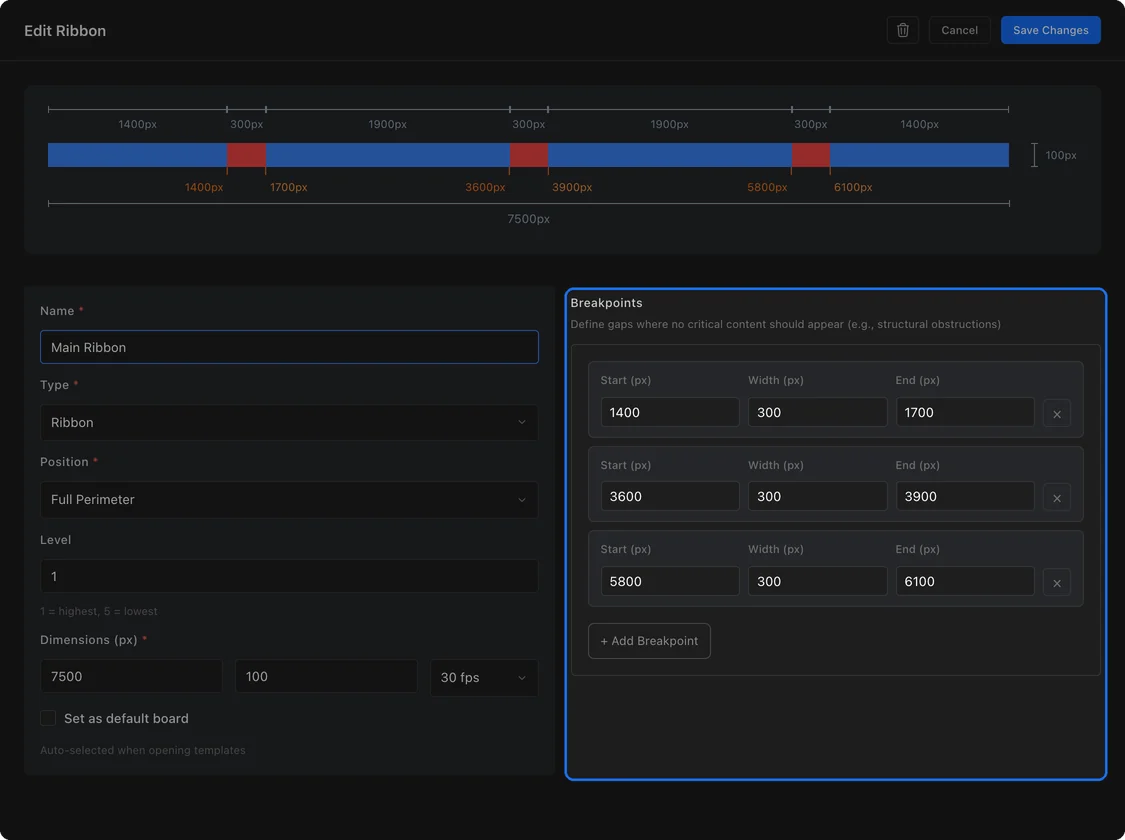
- Dimensions and frame rate: the ribbon's full width and height in pixels, and its fps.
Breakpoints
A breakpoint marks a stretch of the ribbon where no content should land, like a structural obstruction. Click + Add Breakpoint and set where it starts and how wide it is, in pixels. A ribbon can have up to three.
The strip at the top shows your ribbon to scale, with its sections and breakpoints. Click any number on it to type a new one, or drag a breakpoint to move it.
Editing a ribbon template
A ribbon template edits like any other template, with two views stacked in the middle:
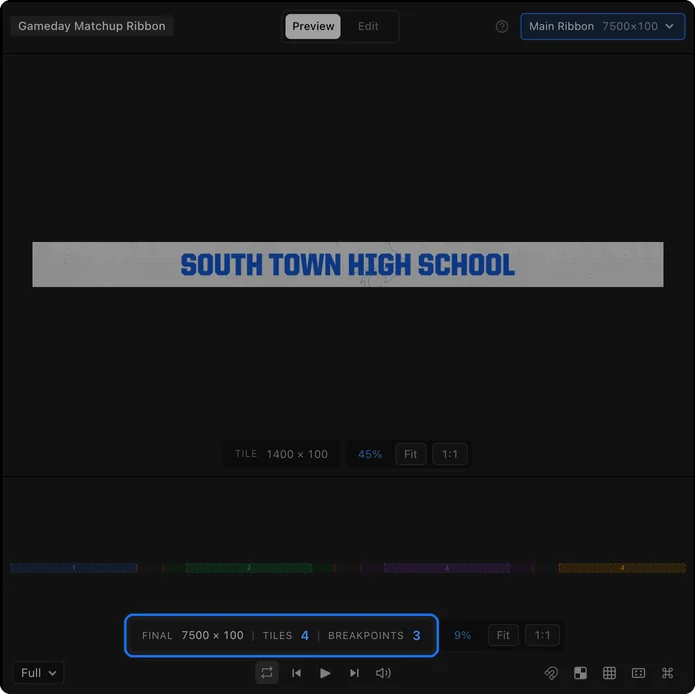
- Tile: one tile, the piece that repeats along your ribbon. Edit and Preview work here like on any canvas. Double-click selects an element; a tile has no source view.
- Final: your whole ribbon at its full size, with how many tiles it holds and its breakpoints.
Pick your ribbon from the size menu above the views. The Ribbon section in the Editor panel sets the ribbon's scale, scrolling, and how many tiles go in each section. Its Add Breakpoints link (Edit Breakpoints once the ribbon has some) takes you to Ribbons to set them.
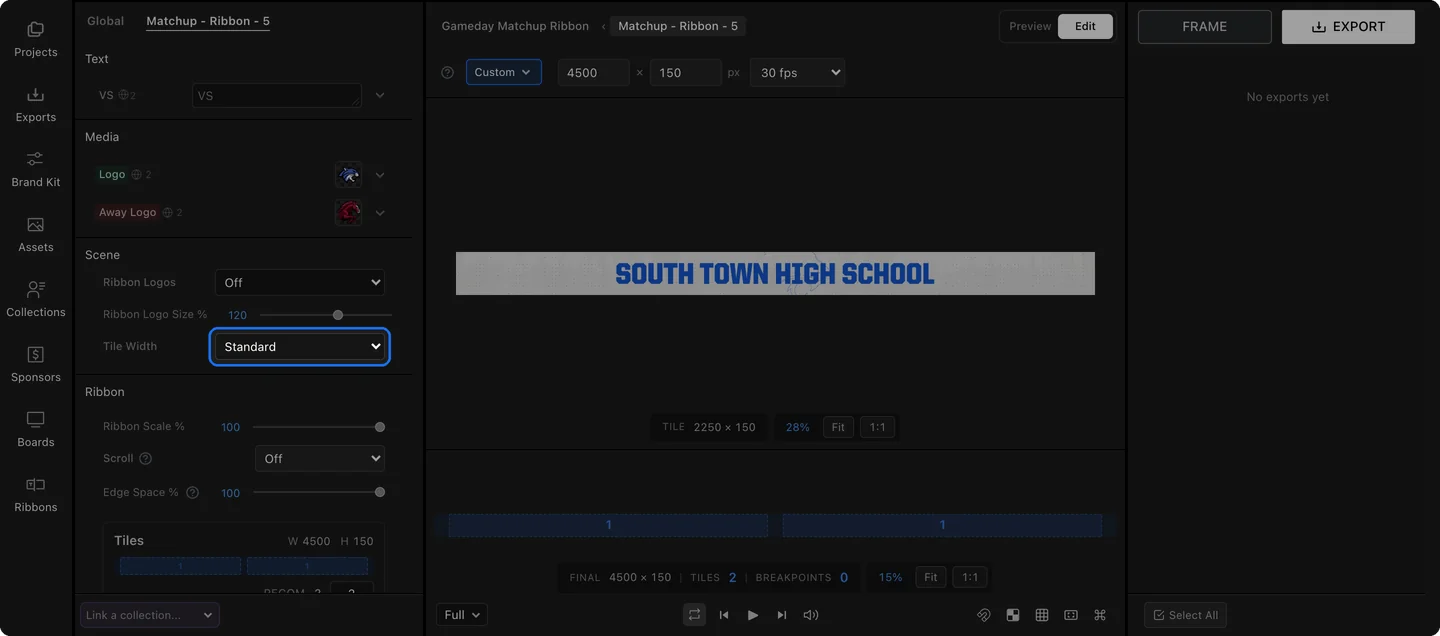
Each module also has a Tile Width setting under Scene: Standard, Wide, or Ultrawide. It sets how wide that module's tile is, and the Tile view shows the new size.
Find ribbon templates
If your package includes ribbon boards, All Templates on your dashboard has a Type filter. Choose Boards + Ribbons to see each template with its ribbon right under it. Click the board to open the template, or the ribbon to open its ribbon version.