
Browse all guides
5-minute quickstart guide
SportStudio makes broadcast-quality sports videos in your browser. Pick a template, add your details, render. Here's the quick version.
Here's a quick tour of making a video in SportStudio, from picking a template to downloading the finished file.
Select a template
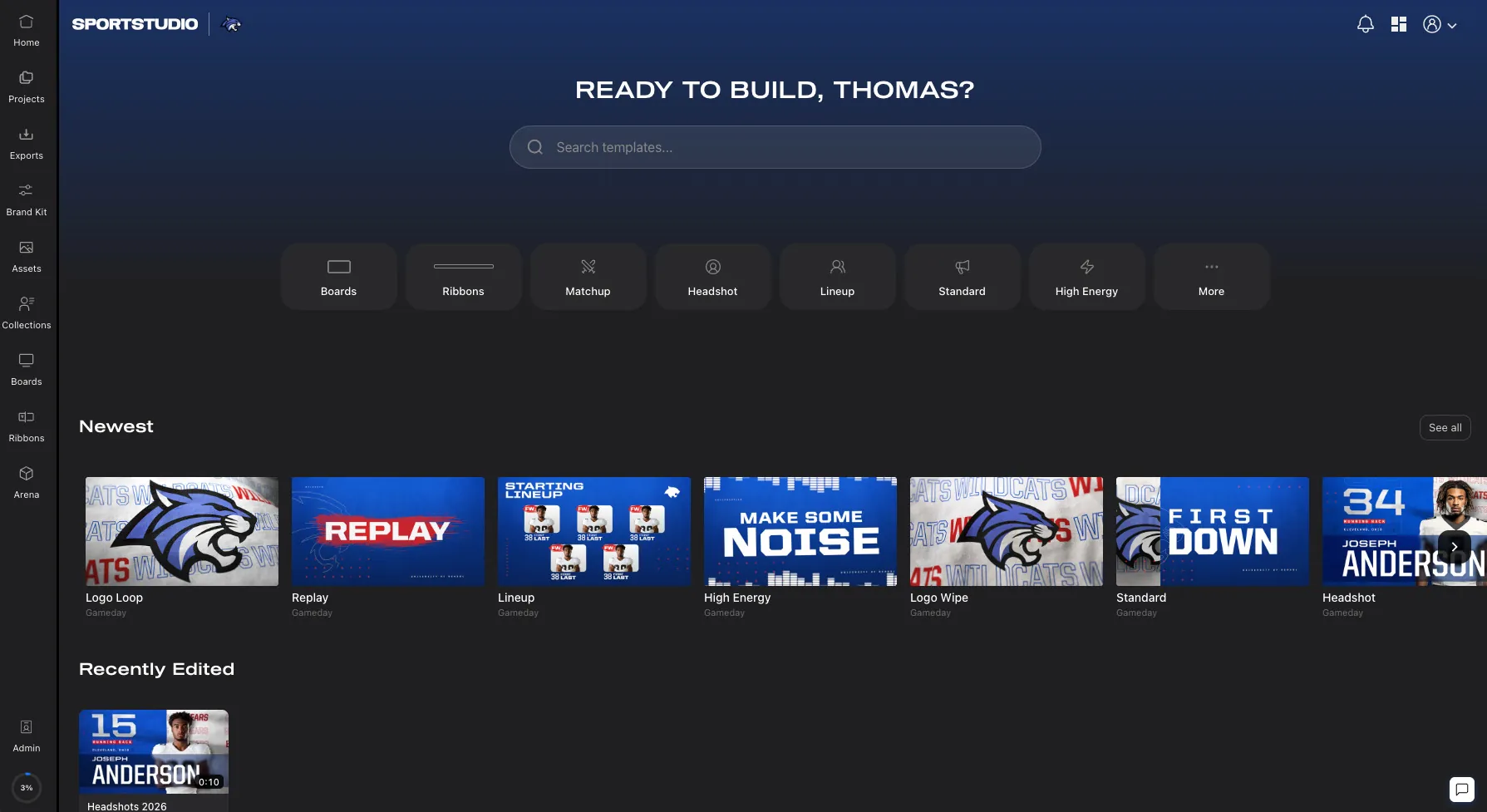
From your dashboard, open the template library. Every template comes designed and animated, so you start from a finished video. Open the one you want (this tour uses a headshot template).
Editor Panels
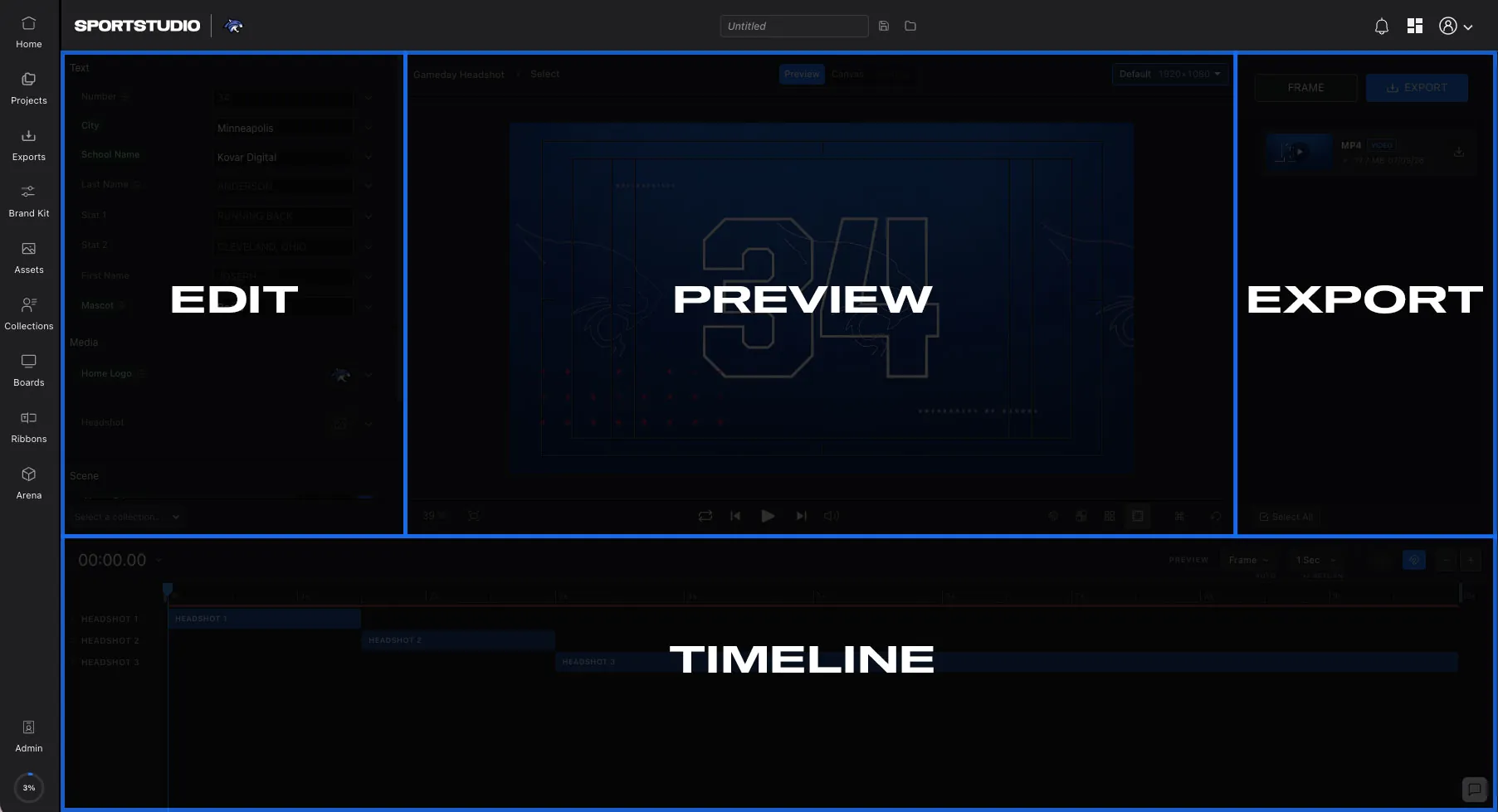
Open a template and you land in the editor. It has four panels:
- Editor: where you change text, values, colors, and layout.
- Preview: a live look at what you're building.
- Export: where you create the final download.
- Timeline: a visual view of your video and its sections.
Set up your Brand Kit
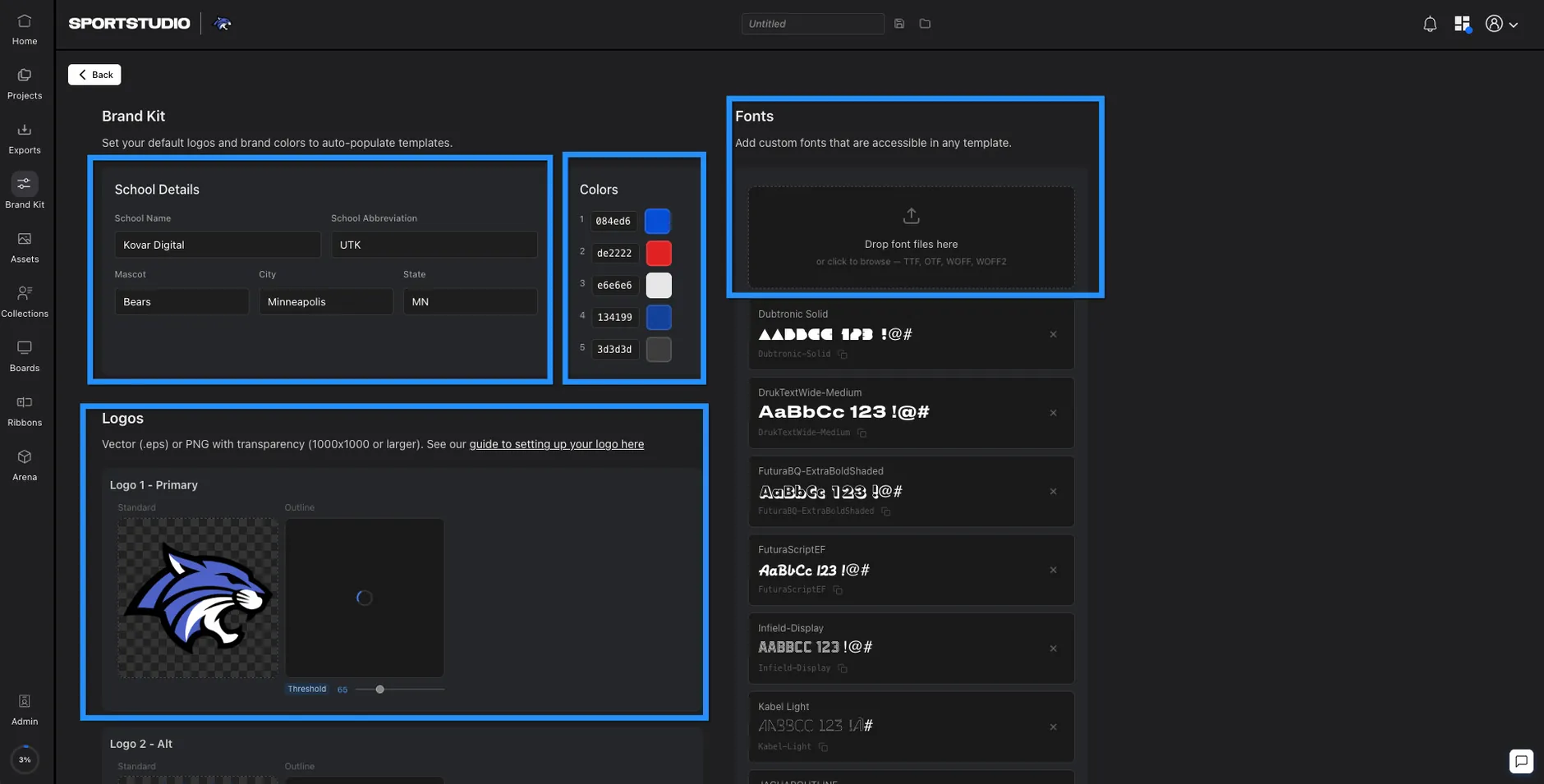
Before you edit, open your Brand Kit and add your basics. Every template pulls them in for you:
- School details: your school name and city.
- Team colors: at a minimum, your primary and secondary.
- Logo: at least your primary. If it doesn't show up after import, move the outline threshold up or down until it looks right.
- Custom fonts: drag them in.
More detail in the Brand Kit guide.
Edit a field
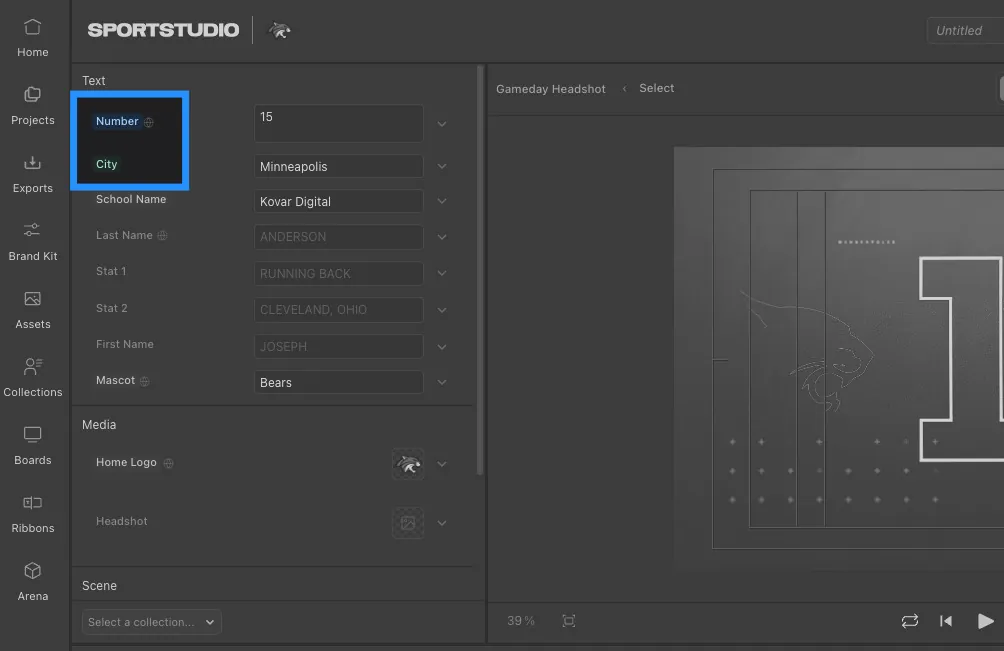
Click a field and change it. Say you change a number from 34 to 15. A spinner shows while SportStudio builds a preview, then the Preview panel updates. That's the core loop: you edit, it previews.
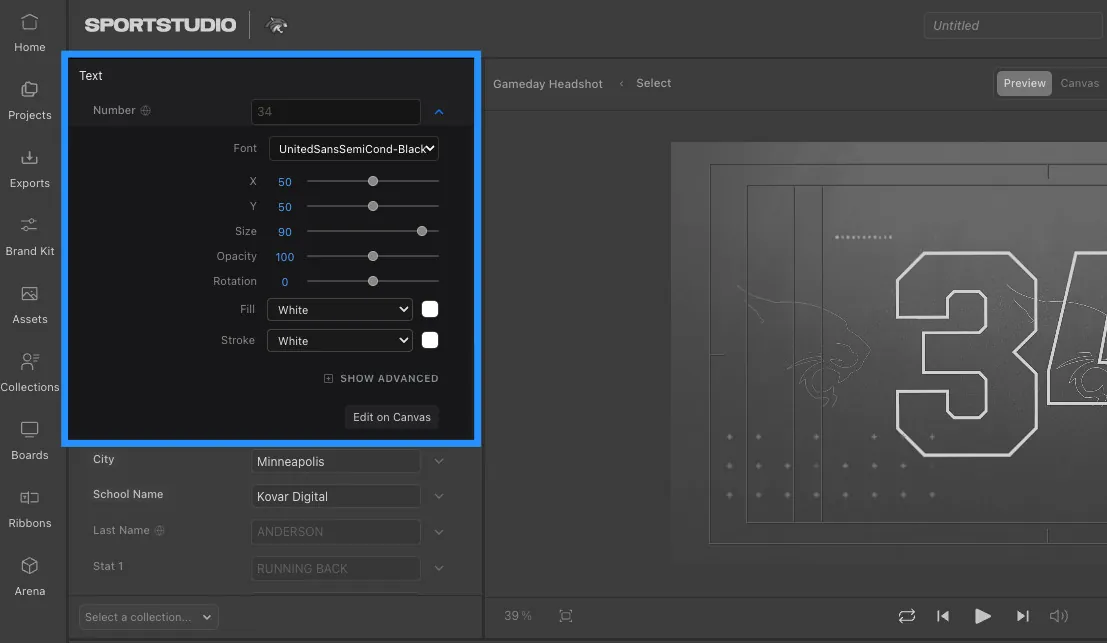
Twirl open any field to see more options: fonts, position, opacity, and color.
Labels
Label colors tell you what's going on at a glance:
- Blue means you've edited that field, like the number you just changed from 34 to 15.
- Green means the value comes from your Brand Kit, like your city or your primary and secondary colors.
Move things on the canvas

To move an element, open the Timeline and click the module you're working on to see its layers. Click a layer to highlight it in the editor, then drag it on the canvas. You see the change as you make it, with no nudge, render, nudge.
Double-click a layer to edit its source. You'll see three tabs:
- Canvas: all the elements together.
- Source: that one layer's source.
- Preview: renders your change so you can see it.
Preview as you go
You can preview a section two ways:
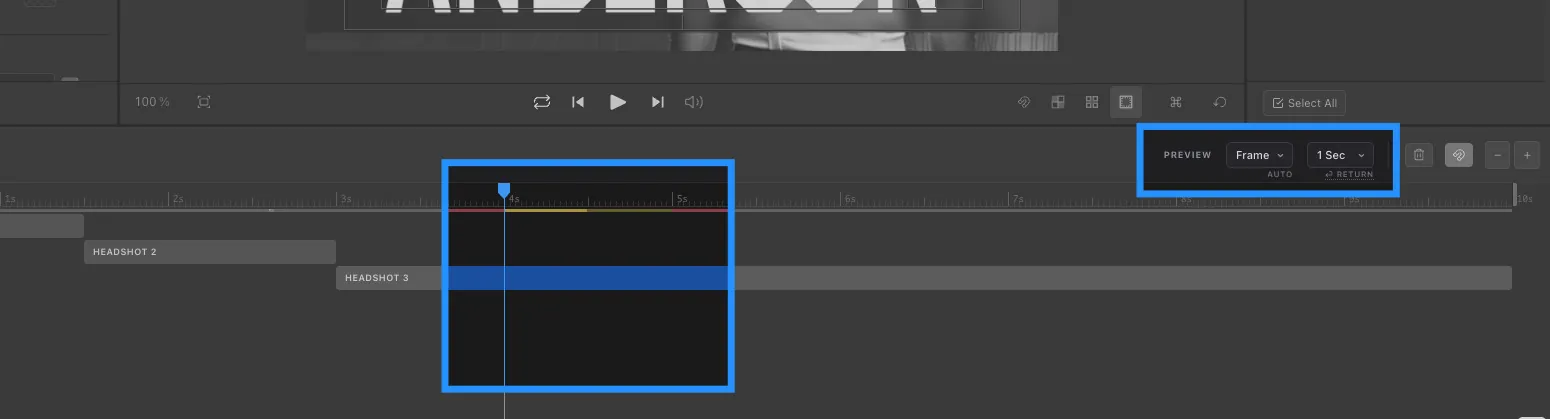
- Automatic: move the current time indicator and stop, and SportStudio builds a preview on its own. It turns yellow while rendering and green when it's ready. Control it with the auto-preview dropdown: off, one second, or two.
- Manual: press Return to render a short section (about 30 frames by default) and watch it play. Or switch it to render only the frame you're on.
Export and download
When you're happy, open the Export panel:
- Set the file name, or keep the one it fills in from your school and the template name.
- Pick your format. Need one that isn't listed? Ask us and we'll add it.
- Choose to get an email when it's done.
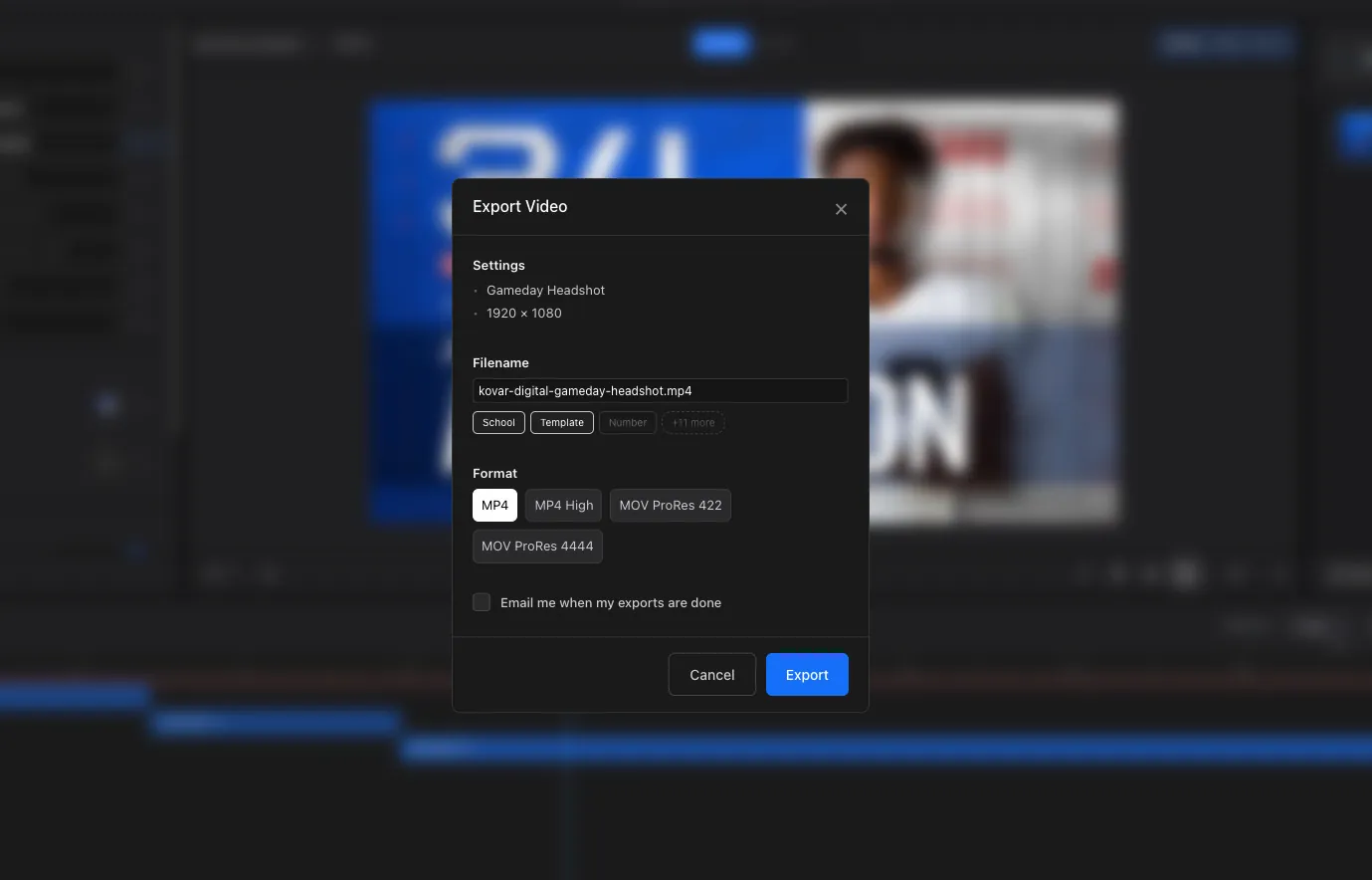
Click Export and watch the progress. Most videos take a minute or two. When it finishes, download it from there. It also lands on your timeline as a layer with a blue indicator, so you can scrub and play it back.
Where to go next
That's the quick tour. The rest of the help center goes deeper.