
Introducing Collections
Most of the videos an athletic department makes come from the same few sets of data. The roster. The schedule. The teams on it. Every season, someone types that data into graphics again, one player at a time.
Collections let you store that data in SportStudio once, so your templates can read it.
What a collection is
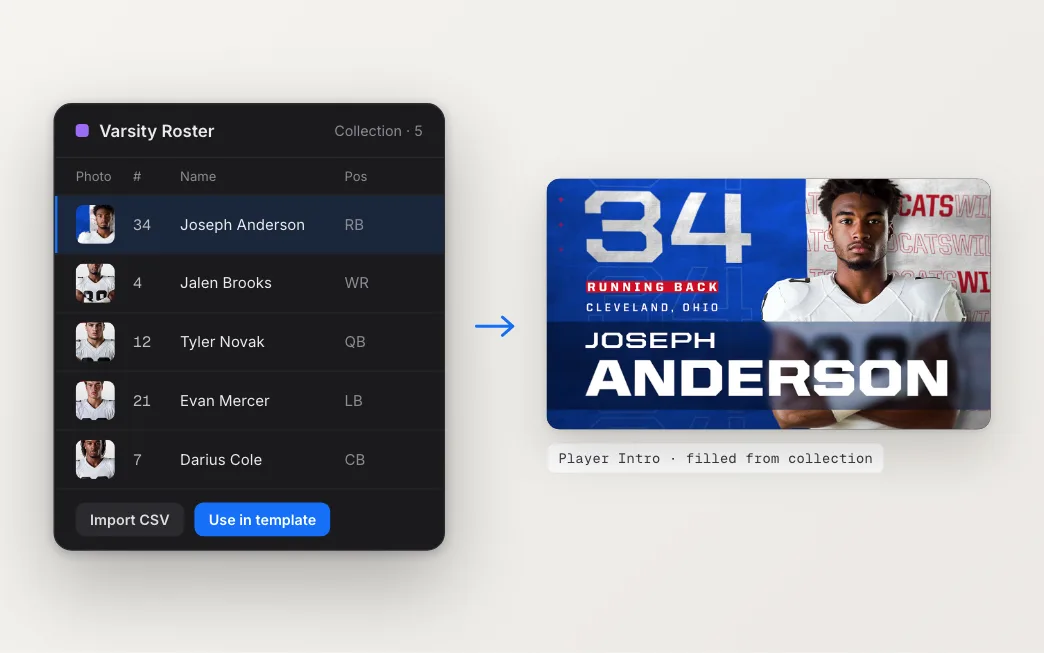
A collection is a table, like a spreadsheet. Each row is an entry, like a player, and each column is a field. When you create one, you can start from a template:
- Headshots: first and last name, number, headshot, position, height, weight and year.
- Matchup: school name, mascot, logo, city, colors and record for both the home and away teams.
- Blank: start from nothing and add your own fields.
Fields can be text, numbers, images, colors or a dropdown of choices. Add, remove and reorder them to fit how your department works.
Matchup collections have one more setting: Use Brand Kit for Home Team. Turn it on and the home fields fill from your Brand Kit, so you only enter your opponents.
Getting your data in
Add rows by hand and edit them inline, or import a CSV. The import shows you the first few rows so you can check that it read the file right. Then it matches your columns to the collection’s fields by name. A “jersey” column lines up with Number, and “photo” lines up with Headshot. Fix any that don’t match, choose whether to replace the existing rows or add to them, and import.
Filling a template
In the editor, pick a collection from the Link a collection dropdown. SportStudio matches the template’s fields to your collection by name, so the name field finds your name column and the color fields find your color columns. Linked fields get a purple label and a small chain icon. Click the icon to point a field at a different column or unlink it. Type your own value and that one field unlinks and keeps what you typed.
Use the Preview dropdown to load a single entry into the template, check that everything lines up, and render it. Then load the next entry. (Rendering a whole set in one go came next, with Batch Rendering.)
Season after season
A collection isn’t tied to one template. The roster that fills a player intro this week can fill a different template next week. When the season turns over, update the rows instead of starting from scratch.
Start with Adding your roster, then Linking a collection.