
Live Previews in the Editor
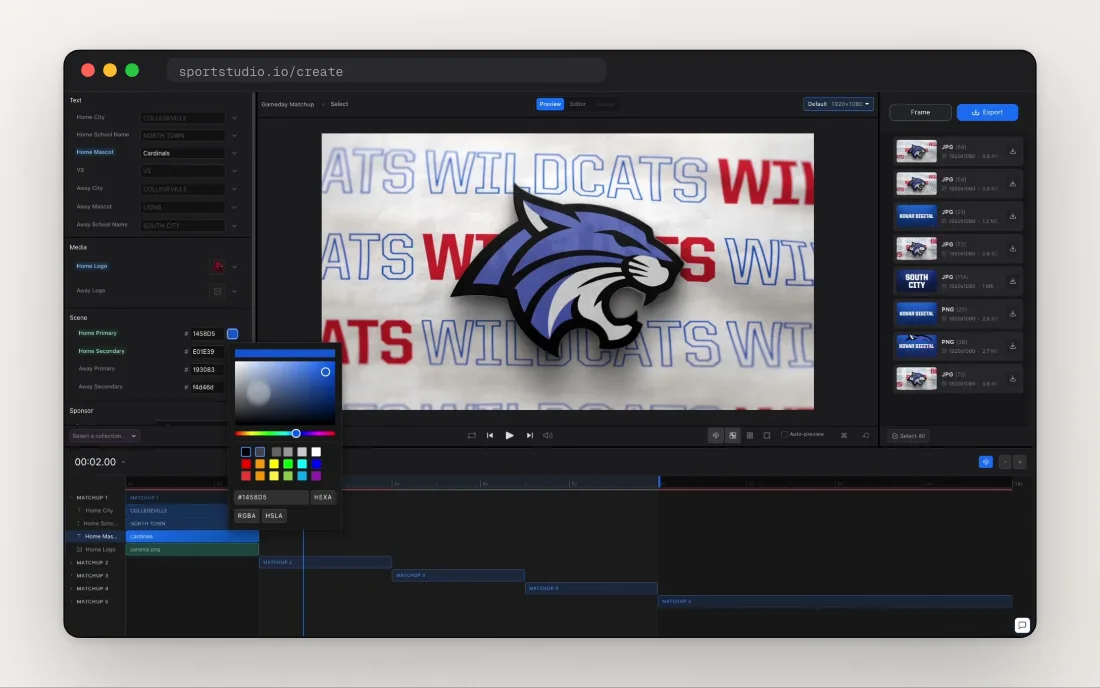
The editor canvas is fast. Drag a logo, retype a name, change a color, and the canvas shows it right away. But the canvas is a stand-in. It lays out your text and media so you can position things. It doesn’t run the animation and effects that make the finished video look the way it does.
Until now, the only way to see the real thing was to export and wait. Live Previews close that gap. As you work, SportStudio renders real frames and short clips of your template on our render machines, from the same After Effects project that makes your final export, and plays them right in the editor.
Automatic previews
Move the playhead and stop, and SportStudio starts a preview on its own. The status bar above that section turns yellow while it renders and green when it’s ready to play. Change something and the bar turns red, which means that part needs a fresh preview.
The Auto dropdown sets what renders on its own:
- Frame: a single still at the playhead. The quickest way to check a layout as you scrub.
- Current: a short span forward from the playhead, when you want to see the motion.
- None: auto-preview is off.
Previews when you ask
Press Return (or Numpad 0) to render right now. The Return dropdown sets how much:
- Frame: one still.
- Current: a short span forward of the playhead.
- Clip: the whole section the playhead is in.
- All: the entire timeline. Press Escape to cancel.
Only what changed
Behind the scenes, SportStudio keeps track of what you’ve touched. Edit a field and the sections it affects are marked for a new preview. Everything you’ve already previewed stays cached, so it plays back without another render.
Longer sections are split into short pieces, and the piece under your playhead goes first. The part you’re looking at shows up before the rest of the section.
When you want quiet
Sometimes you want to make a batch of changes before looking at any of them. Toggle the eye-off control to pause auto-previews while you work. Return still previews on demand. You can also hold Shift while you scrub to skip the preview for that move.
The Creating previews guide covers every mode, and Editing the timeline explains the status bars.