
Know When Your Render Is Ready
Rendering used to be a bit of a black box. You clicked Export, a spinner turned, and you had no idea if the video was a minute away or stuck. So people kept the tab open and kept checking. That’s time nobody has on game day.
Real-time render notifications fix that in two places: on the render card while you’re in the editor, and in your inbox when you’re not.
A card that shows where things stand
Every export shows up as a card in the Exports panel, and the card follows the render through each stage:
- Queued: your render is waiting for the next open render machine.
- Preparing: the machine is pulling in your logos, photos and other files.
- Rendering: a progress bar with a live percentage.
- Uploading: the finished file is on its way to your account.
When it’s done, a Download button appears on the card. The video also lands on your timeline as a layer, so you can scrub through it and play it back before you download.
Batch renders get one card for the whole set. It counts how many are finished and lists every item with its own progress, so you can see which videos are ready and which are still going.
An email when it’s done
Most videos take a minute or two. That’s long enough to wander off and short enough that you’ll want to know the moment it’s ready.
In the export dialog, check Email me when my exports are done. Then close the tab if you like. The render keeps going on our end.
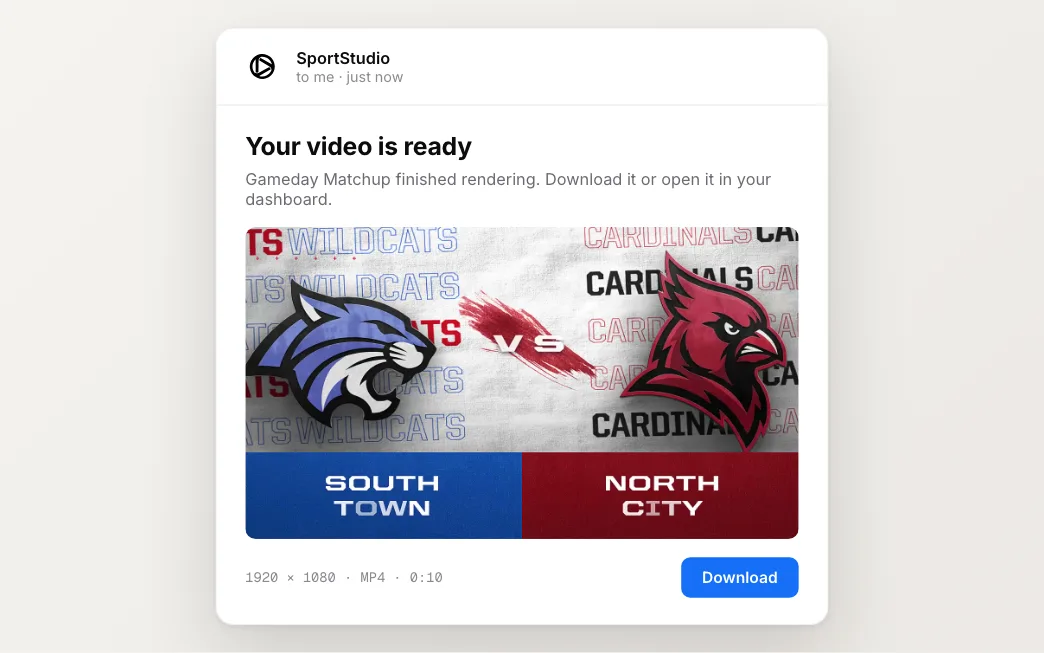
When a single video finishes, the email has a Download button that downloads the file directly, using the file name you set in the export dialog. There’s no page to open and nothing to sign into, which helps when you’re on your phone in the arena.
For a batch, you get one email for the whole set instead of one per video. It tells you how many exports are ready and links to your exports, where you can download them all.
Nothing gets lost
Every finished render also goes into your render history in the dashboard. Missed the email, or need last month’s video again? It’s there to download whenever you need it.
The Exporting your video guide covers formats, file names and the email option.