
Introducing the Sponsor Editor
Sponsors pay for a lot of what runs on the board. Delivering on those deals usually meant a one-off edit: open the project in After Effects, drop the partner’s logo in, render, repeat for the next video. Most athletic departments don’t have time for that every week, so sponsor content often ends up as a static slide between the good stuff.
The Sponsor Editor moves that work into the SportStudio editor you already use.
A sponsor version of the template
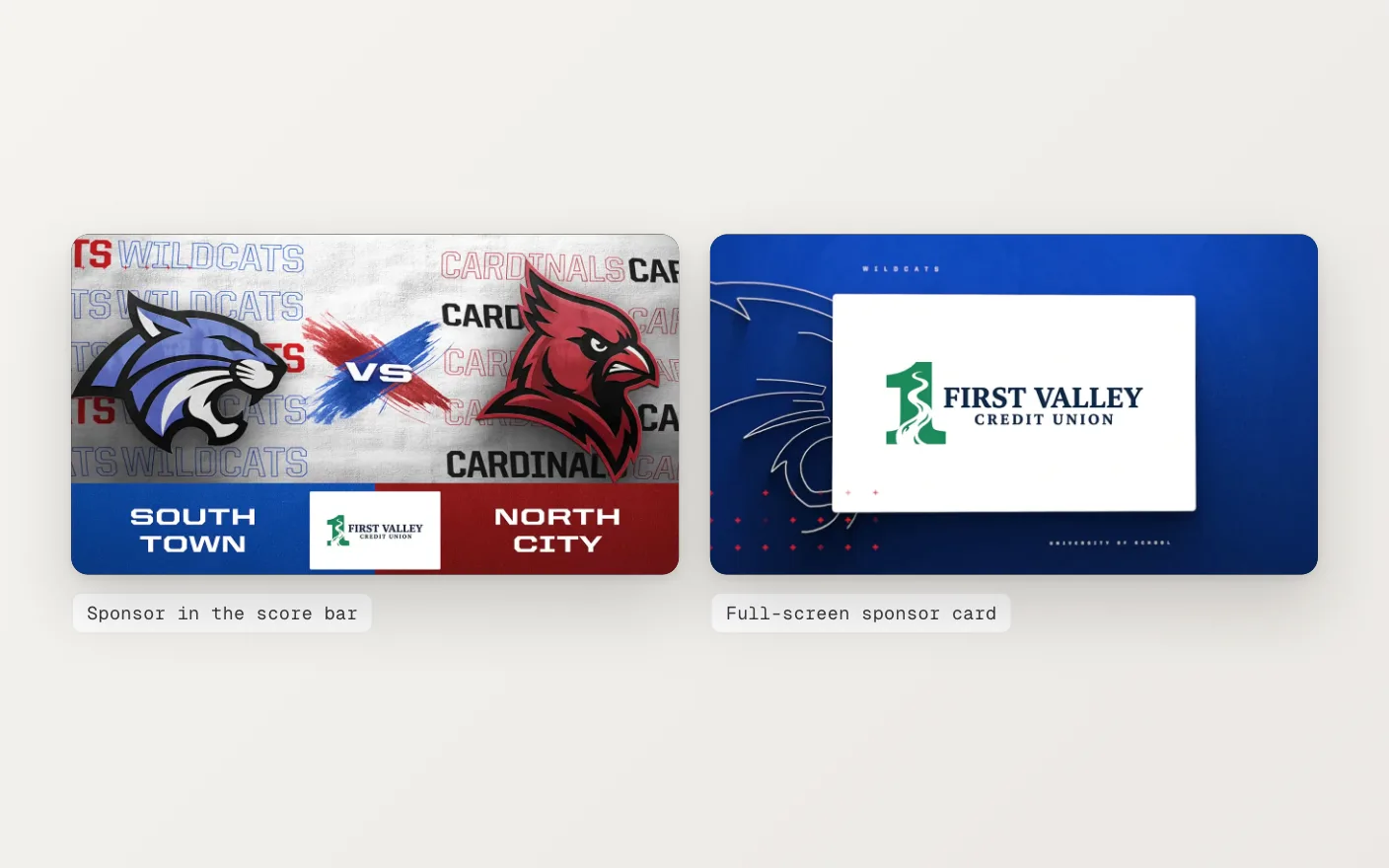
Templates that support sponsors come with a sponsor version. Switch to it and the partner gets a spot that was designed into the template: a logo lockup in the score bar of a matchup, or a full-screen sponsor card inside the game-day graphics.
Because that spot is part of the design, the logo animates with everything else. It doesn’t look pasted on top, because it isn’t.
Pick a placement
The layout dropdown decides how the sponsor shows up. Default puts the logo in the template’s own sponsor spot. The other options are broadcast-style placements: a lower third across the bottom, a bug in the corner, or a bar down one side.
Each placement has its own settings. Set a background color for the bar. For the bug, choose its position and nudge it with X and Y offsets until it sits where you want it.
Logos and a message
Every placement has sponsor logo slots and a line of sponsor text. Drop a partner’s logo into a slot, type their message, and pick the font and color for the text. The same font choices you have for the rest of the template are there too.
You can save up to three sponsor logos to your account. Saved sponsors are pinned in the asset picker, and each one fills its matching slot on its own: Sponsor 1 goes to Sponsor 1, and so on. Pick a different partner for a single video and that choice sticks. Your saved sponsor won’t write over it.
See it where it will run
The sponsor shows on the canvas in the spot where it will render, sized to your board. It also gets its own row on the timeline. Click it to jump straight to that sponsor’s controls in the sidebar, so you’re not hunting through the panel for the right logo slot.
We also kept the sponsor out of a separate panel. Its logos sit in the sidebar with the template’s other media, its text sits with the other text, and its placement settings sit in the Scene section. If you know where to change a team logo, you already know where to change a sponsor logo.
Later we added sponsor bars and L-bars that squeeze the video to make room. That post covers how they work. To see every placement side by side, visit the Sponsored Content feature page.