
Automatic Background Removal
A player intro lives or dies by the cutout. Drop a headshot with a gray photo-day backdrop onto a designed graphic and it looks like a sticker. Cutting out a whole roster in Photoshop takes hours, and the job comes back every season, plus every time someone joins the team midyear.
SportStudio now does it for you. Upload a player photo and the background is gone.
Headshots
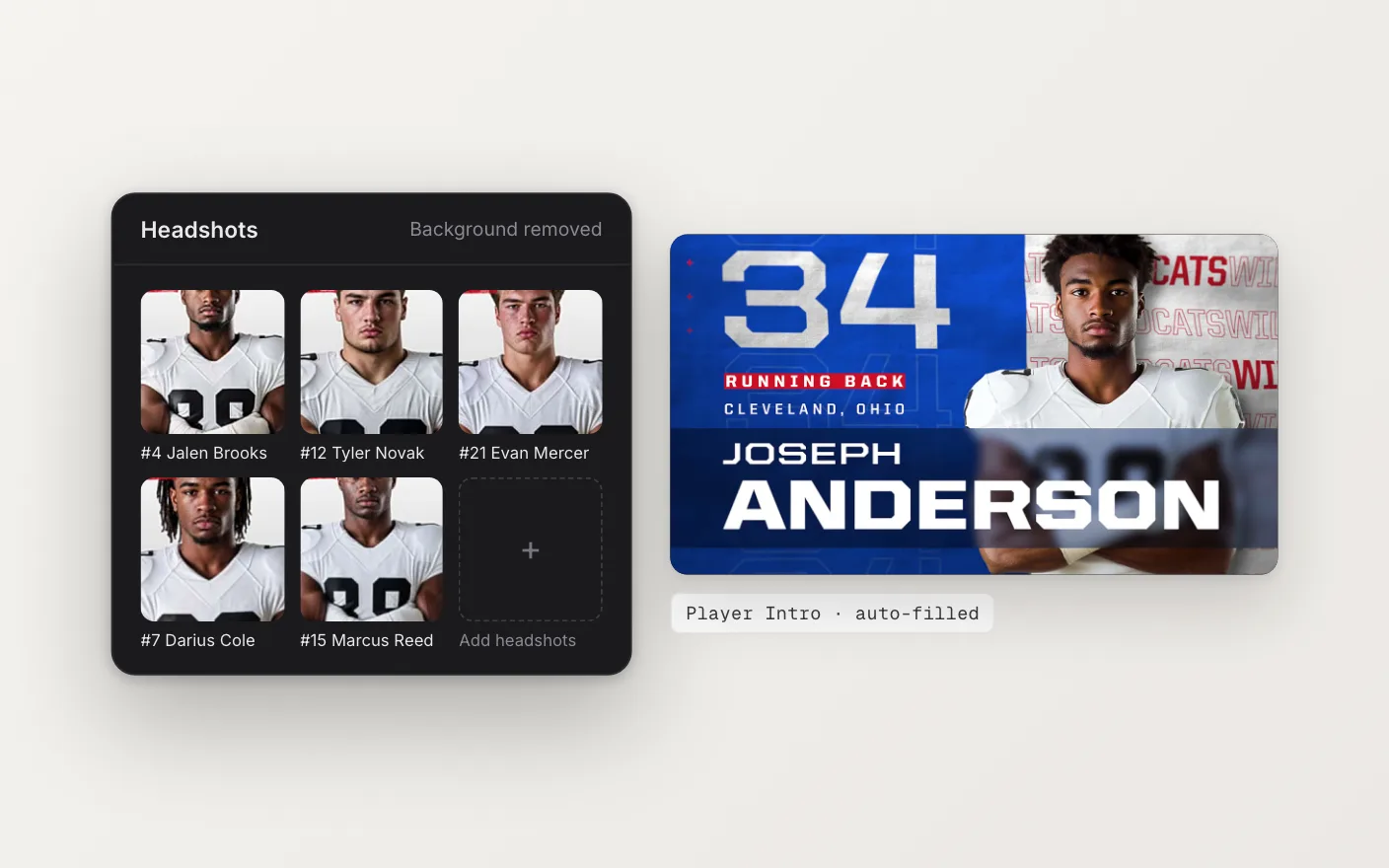
Image fields in SportStudio know what kind of picture they hold. When a field is set up for a headshot, the photo you upload goes through our processing step. It removes the background and comes back as a transparent PNG.
It also squares the image up, so every player sits the same way in the graphic. A tall photo is scaled to fit and padded out with transparency. A wide photo is cropped around the player’s face. If your photographer already delivered cutouts as transparent PNGs, we skip the removal and just size them.
Logos
Logos need a gentler touch. Most arrive either already transparent or sitting on a plain white or colored box. When you upload one, SportStudio checks the corners of the image. If they’re all the same solid color, it removes that color working in from the edges.
That “from the edges” part matters. White inside the logo, like a mascot’s eyes or the letters in a wordmark, isn’t connected to the outer background, so it stays. After that, SportStudio trims the empty space and centers the logo on a square canvas with a small margin, so logos from different sources line up the same way in a template.
Vector files in AI or EPS format get converted to a high-resolution PNG first.
Everything else
Not every image should lose its background. A crowd photo, a texture or a sponsor’s full-color ad should stay exactly as it is. Those are standard assets, and SportStudio uses them exactly as you upload them.
Why we built it in
Clean cutouts were the step that most often held up a headshot project. The template was ready and the roster was ready, but the photos weren’t. Putting background removal right where the photos come in means that step is simply done by the time you’re ready to render.
The Headshots page shows where it fits, from upload to a rendered player intro.