Live Previews
Previews in SportStudio used to be manually triggered by the user. You would pick a cache mode, press Return (or Numpad 0) and wait while the results cached. We’ve completely revamped our caching system, and previews are now automatic and much faster.
Automatic caching
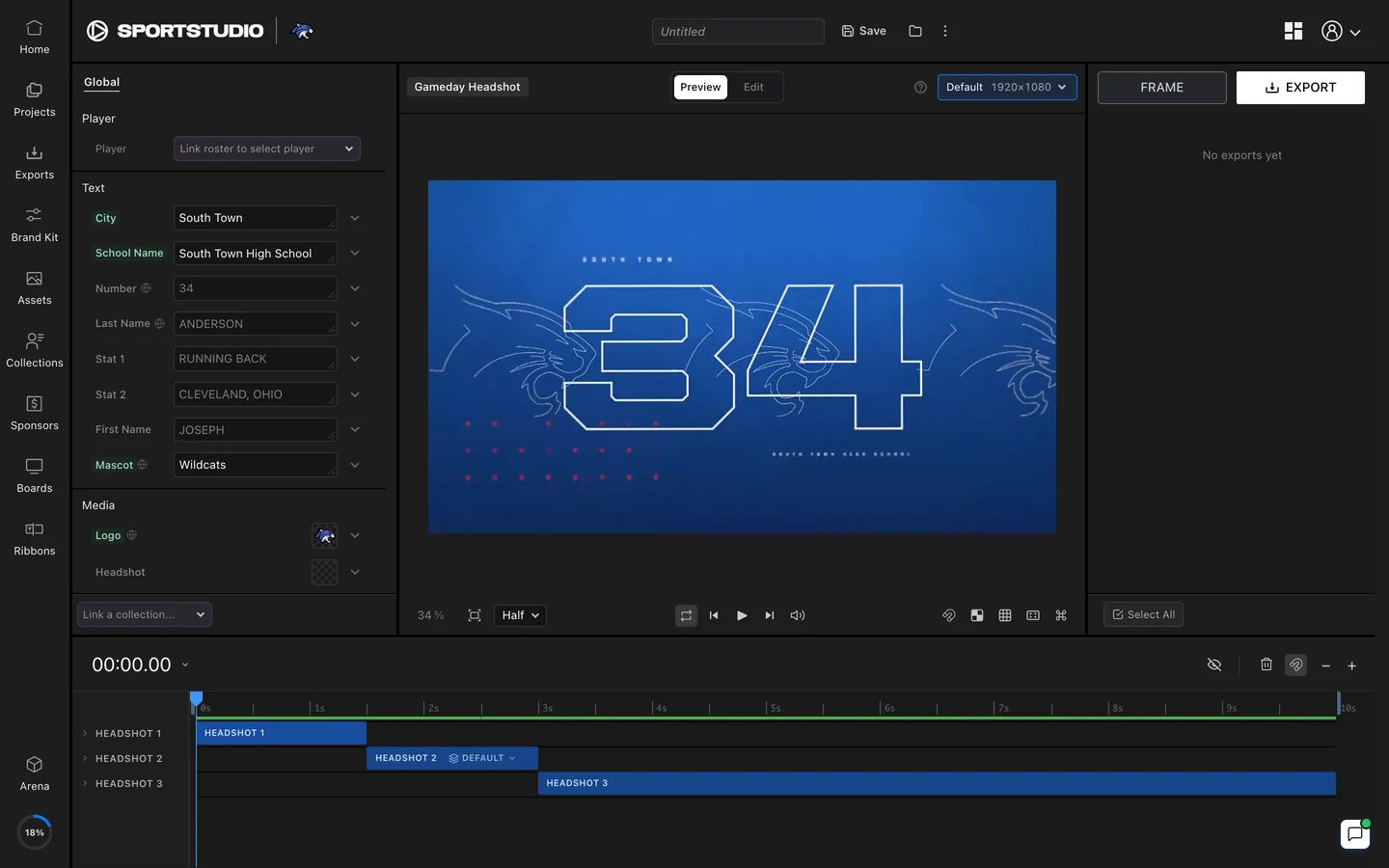
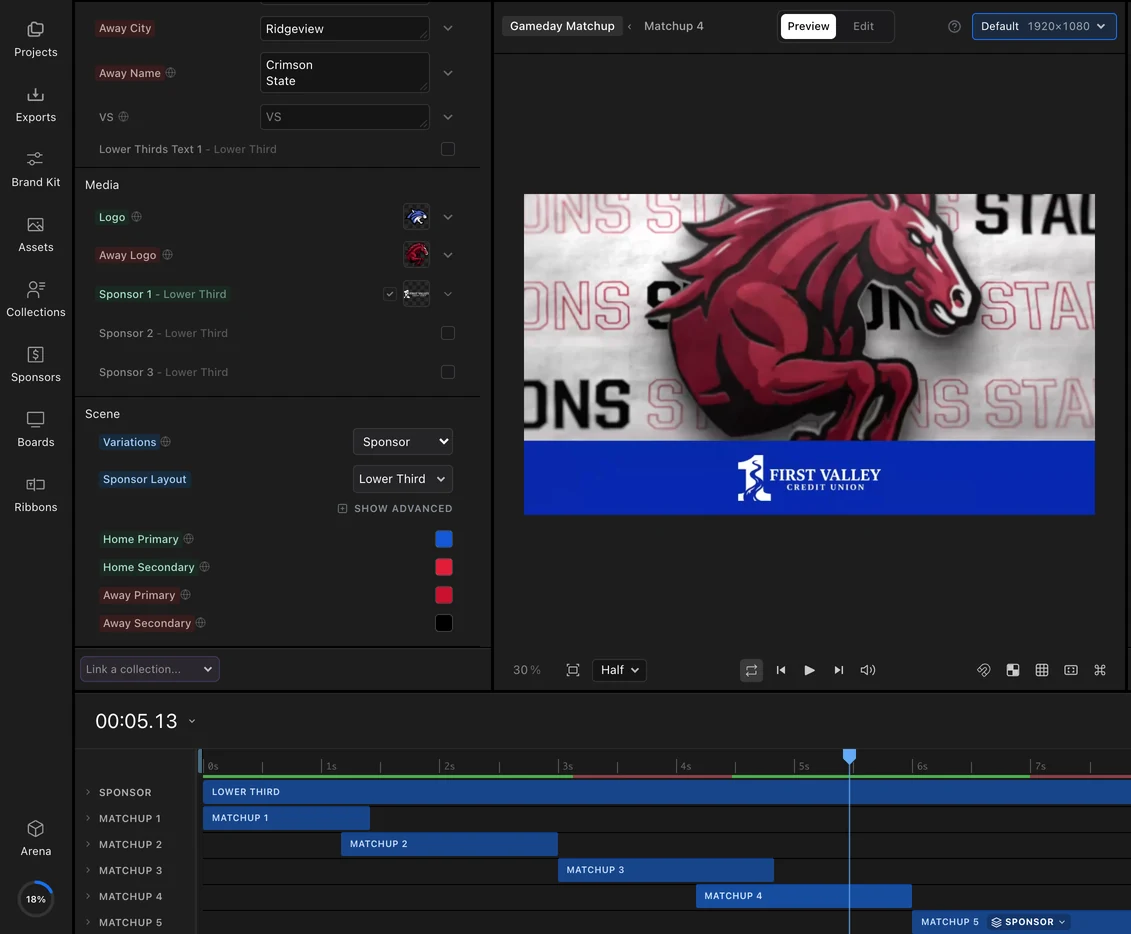
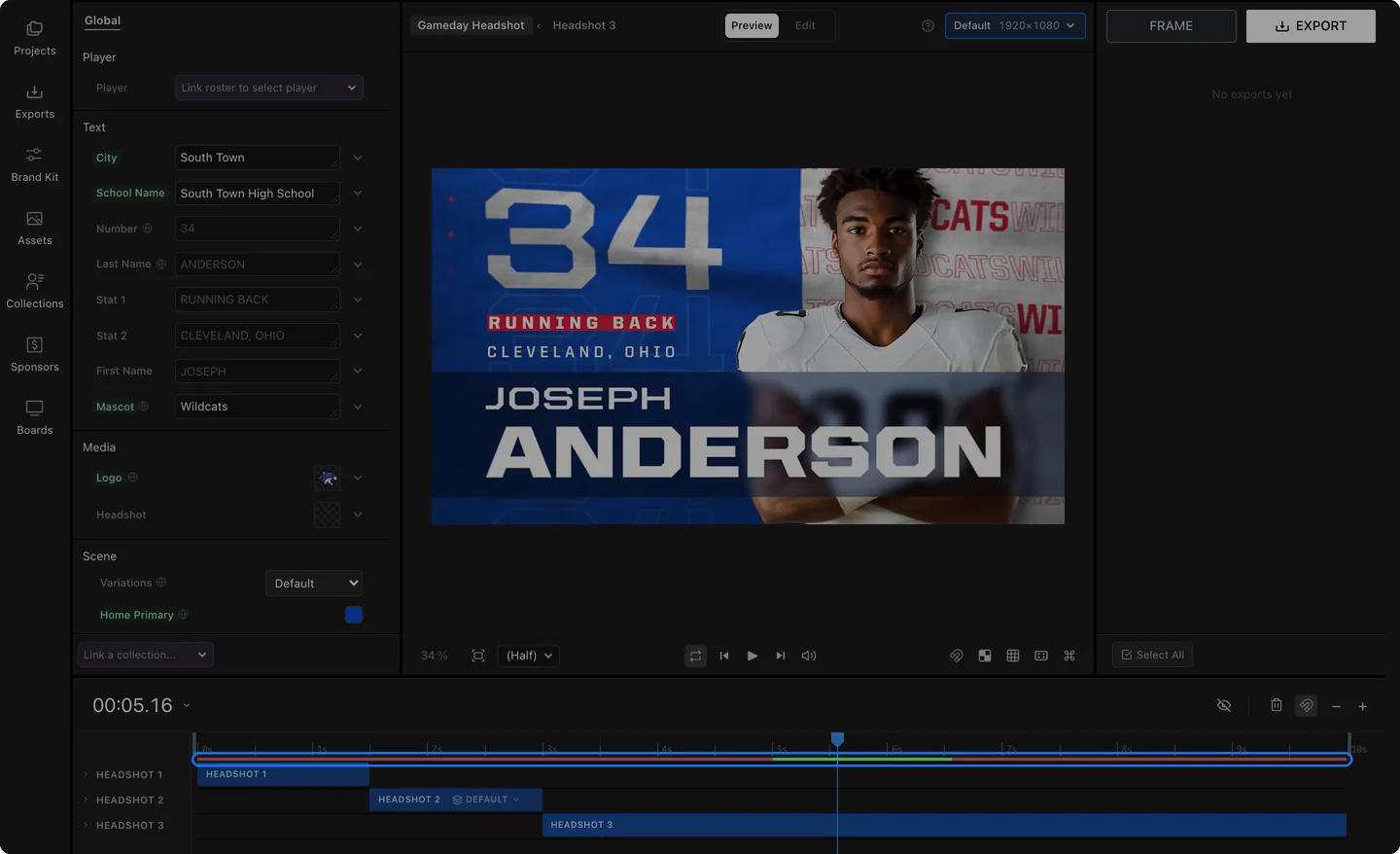
Open a template and SportStudio starts caching your video right away. The green line under the timeline ruler shows what’s ready, and it keeps growing while you work. Change a name, a color or a logo and the preview catches up on its own. There’s nothing to press and no modes to pick. When you want to watch it, press Play (or Space).
Two-way caching
Caching now grows out from the playhead in both directions. Stop anywhere and the green line spreads left and right together, so the moments just before and just after the one you’re looking at are ready first. Scrub back a second to check that a name fits or a logo lands where it should, and it’s already there. You no longer wait for the rest of the video to cache before you can step backward.
Speed improvements
In our testing, the first cached frame shows up about a second after the preview loads. The first preview after you open your browser no longer takes a few extra seconds, and clips look just as sharp. Overall, playback got faster on every measure: loading, caching and playback.
Caching quality
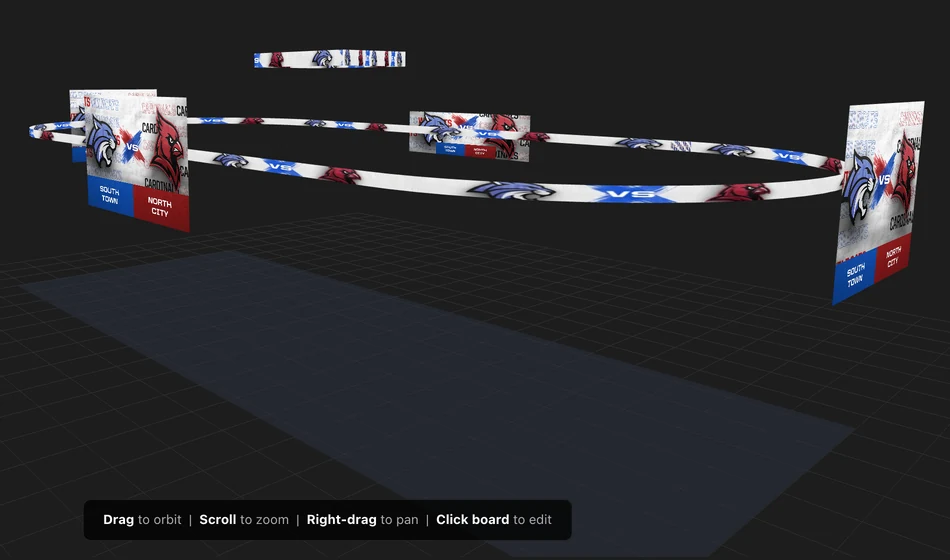
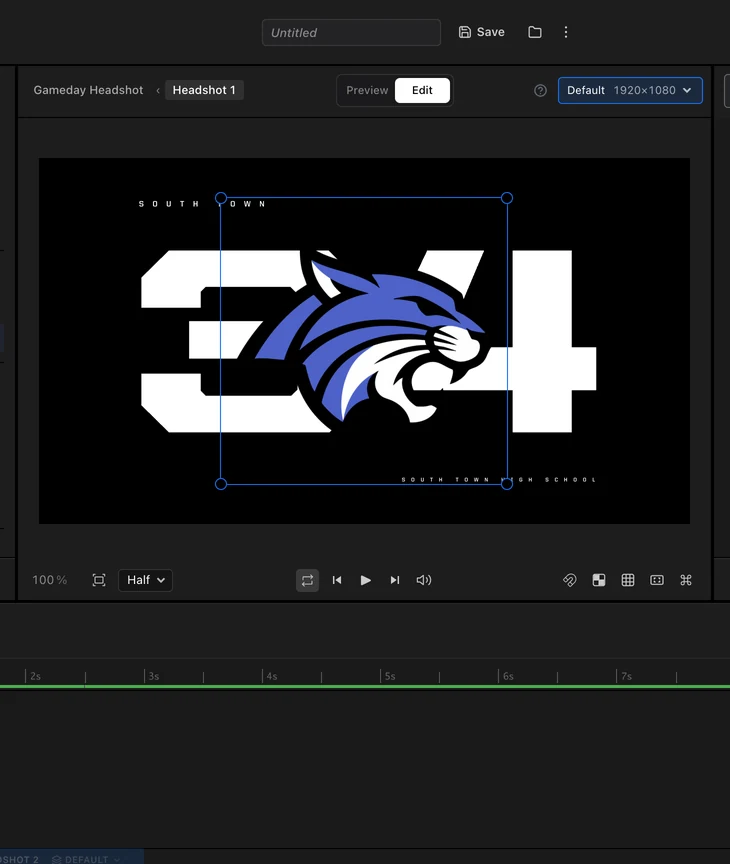
The Resolution menu in the player sets how sharp your previews are. Boards start at Half, which keeps caching and edits quick. To check fine detail, switch to Full at any time, and SportStudio remembers your pick in that browser. Ribbons start at Full, so thin text stays crisp.
Nothing to turn on
It’s live for everyone. Open a template and watch the line fill in.
The Creating previews guide covers caching, the work area and playback, and Editing the timeline explains the cache line.